Step 1. Create a live stream on the Gyre platform
1. Go to the "Live streams" section.
2. Click "Add stream" and fill in the required fields (platform, stream name, optional group for the stream, select the video or playlist you plan to stream).
3. Save your changes.
Step 2. Set up your live stream on YouTube
1. Log in to your YouTube account.
2. Go to the "Live" section, select the method for going live — Using streaming software, and make sure to create your stream using the "SCHEDULED STREAM" button. This is a crucial step for looping streams.
3. In the Visibility section, set the stream status to Public.
4. Enable the Auto-start option (to start the stream automatically).
5. If necessary, enable the Auto-stop option to stop the stream when the video ends.
Step 3. Start a stream in Gyre cabinet
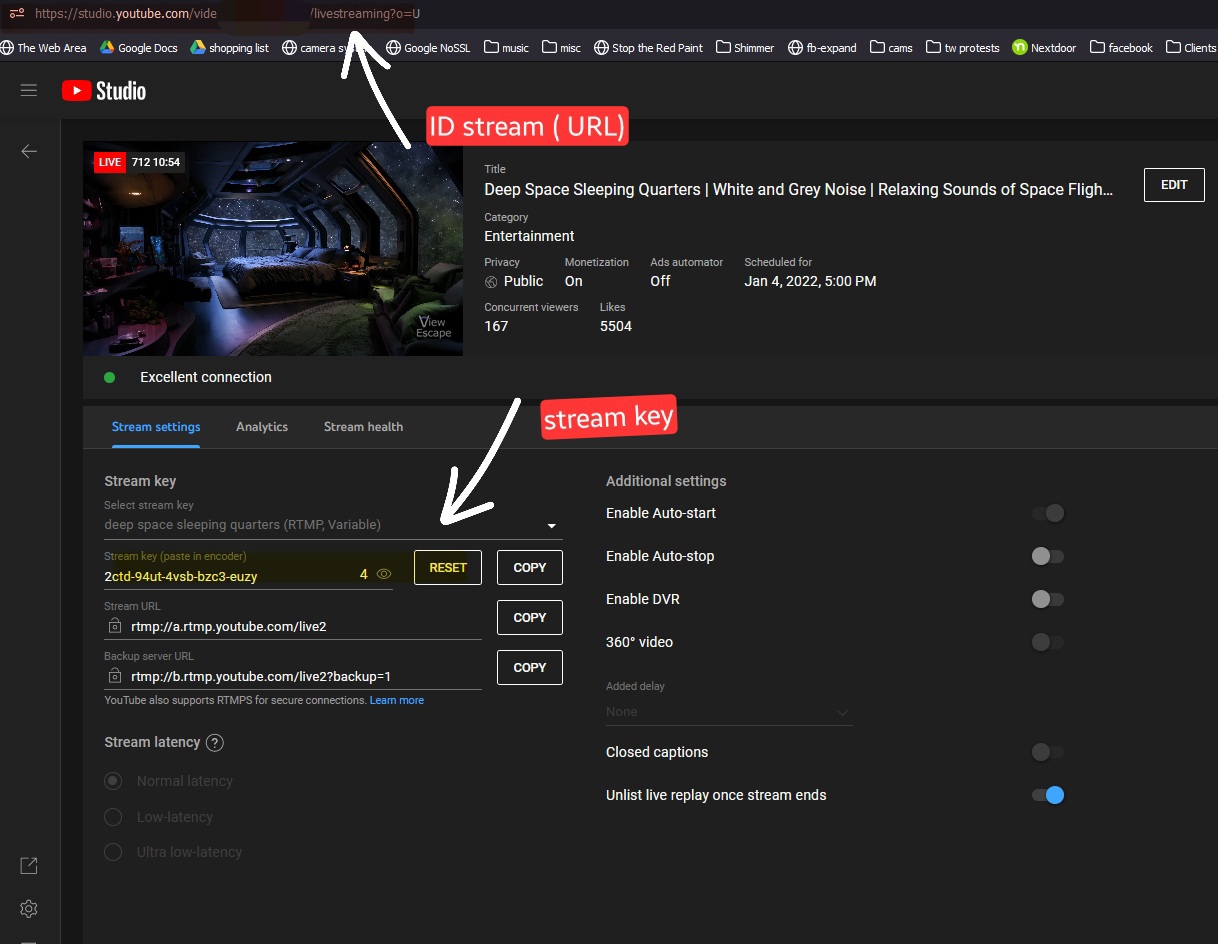
1. Copy the stream key from YouTube.
2. Paste this key into the corresponding field in your Gyre stream settings.
3. Copy the Stream ID from the address bar of your scheduled YouTube stream.
.jpg)
4. Paste the Stream ID into the corresponding field in your Gyre stream settings.
5. Click "Save."
6. Click "Start stream."
Also we recommend to watch a video tutorial in our Knowledge Base:
2.10 Create a live stream on YouTube and Gyre
https://my.gyre.pro/faq?c=lessons&p=create_a_live_stream_on_youtube_and_gyre
Tips:
Ensure your videos are optimized for smooth streaming.
If you encounter any issues, feel free to contact our support team.
We hope this guide was helpful ❤️
