Before you start, please check two prerequisites for YouTube Channel Authorization.
Monetization via YouTube API
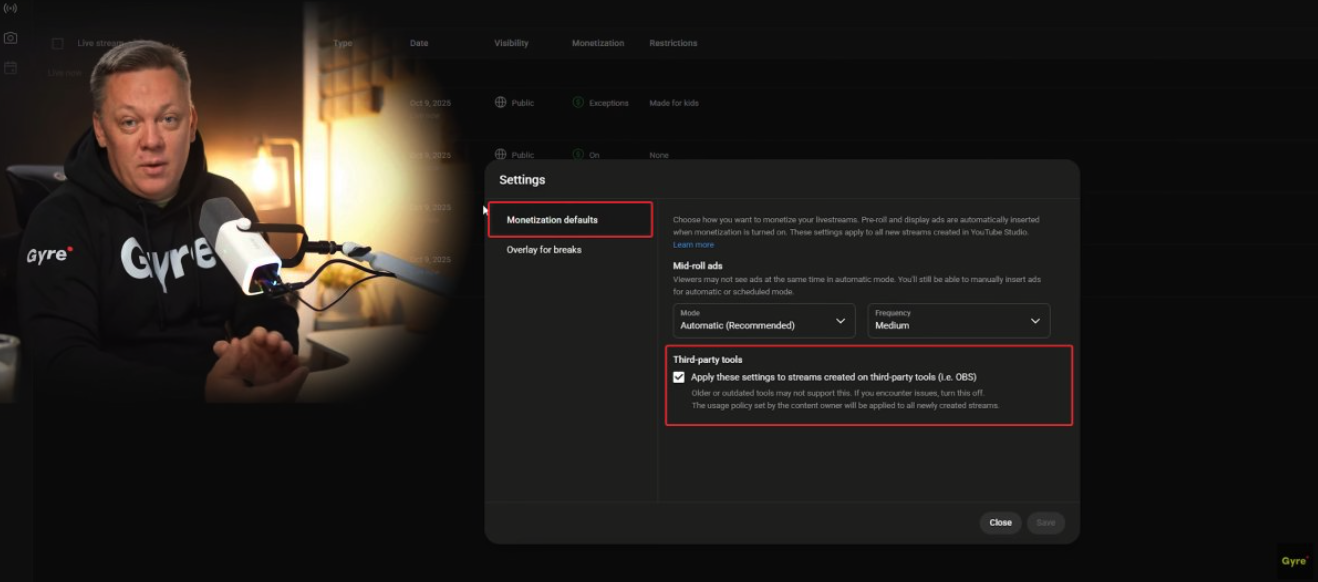
Automatic monetization only works if a specific setting is enabled in YouTube Studio. If this option is turned off, streams created via Gyre (or any third-party tool) will start without monetization.
How to enable it:
- Open YouTube Studio.
- Go to Settings → Monetization.
- Open Monetization defaults.
- Under Third-party tools, enable
“Apply these settings to streams created on third-party tools”.
Once enabled, all streams created through the YouTube API will launch with monetization already active — without extra checks or lost revenue.
YouTube channel verification
If you’ve never streamed on this YouTube channel before, you’ll need to complete YouTube channel verification. This process may take up to 24 hours, so plan your work with Gyre accordingly.
How to Create a 24/7 Stream in Gyre with YouTube Channel Authorization?
1. Creating a Stream
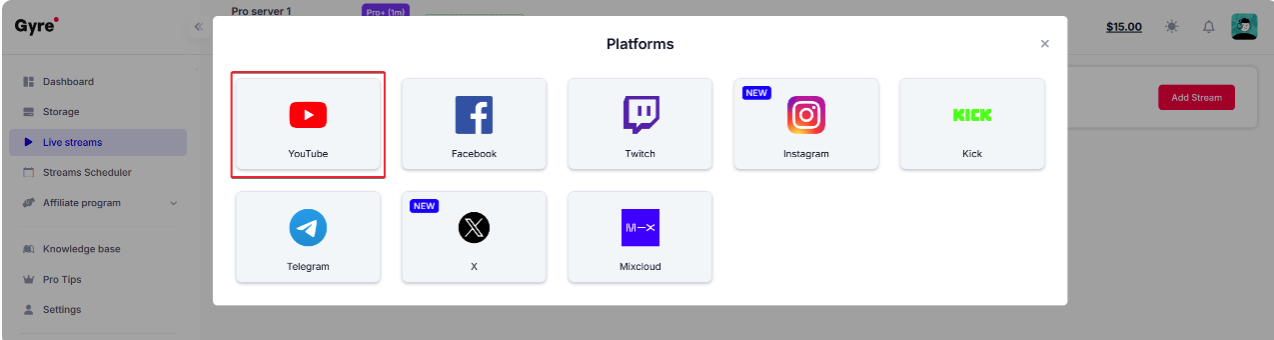
- Open Live streams → Add Stream.
- Select YouTube as the platform.
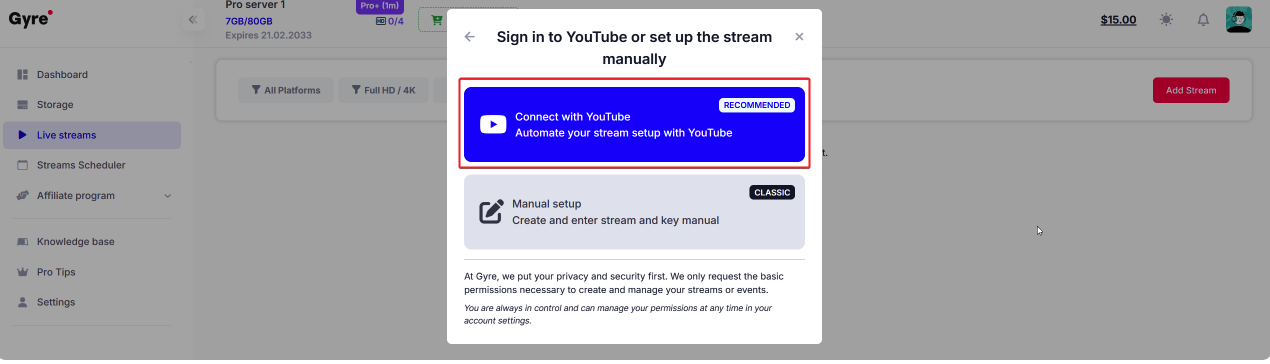
- Choose Connect with YouTube.
-
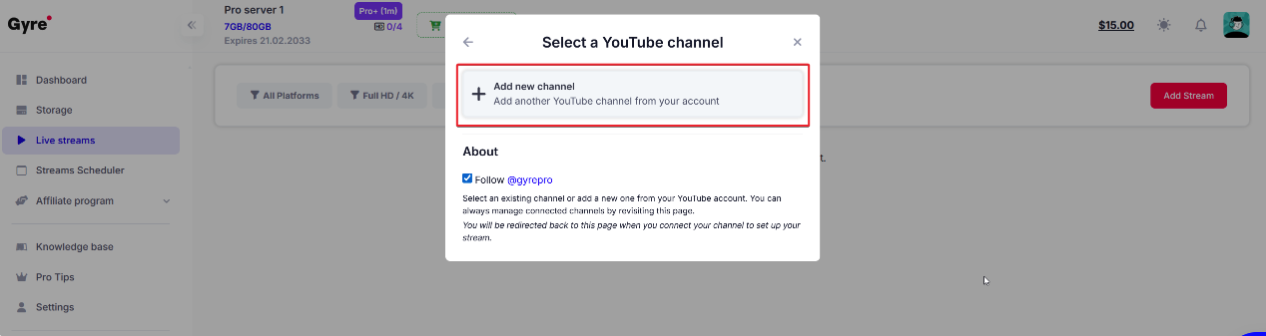
Click Add new channel or select an already connected one.
-
2. Basic Settings
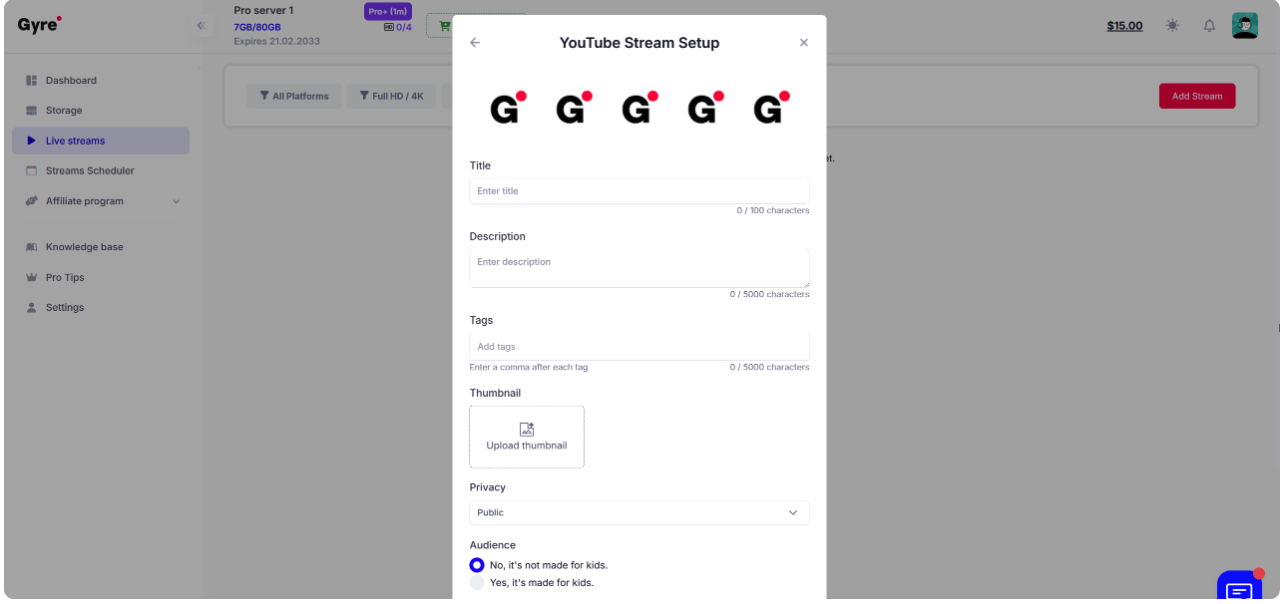
- Enter the title, description, tags, and upload a thumbnail.
- Choose the privacy level, then mark the stream as “made for kids / not made for kids.”
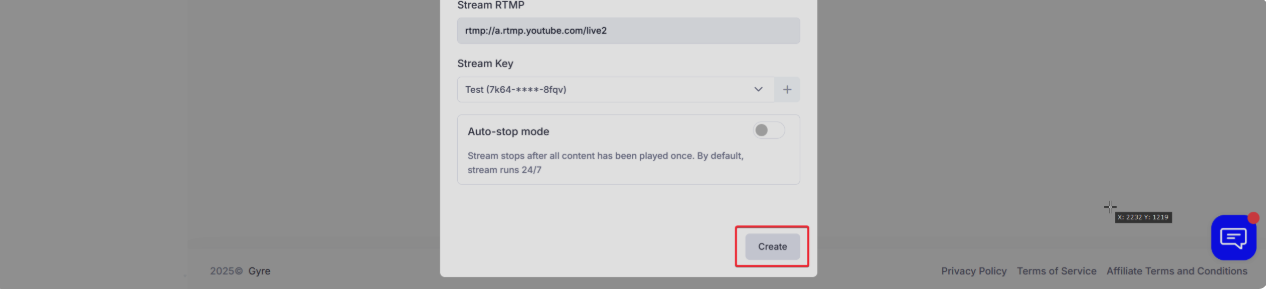
- Select an existing stream key or create a new one.
- Enable Auto-Stop mode if needed (the stream will end once all files finish playing).
-
Click Create.
-
3. Adding Videos
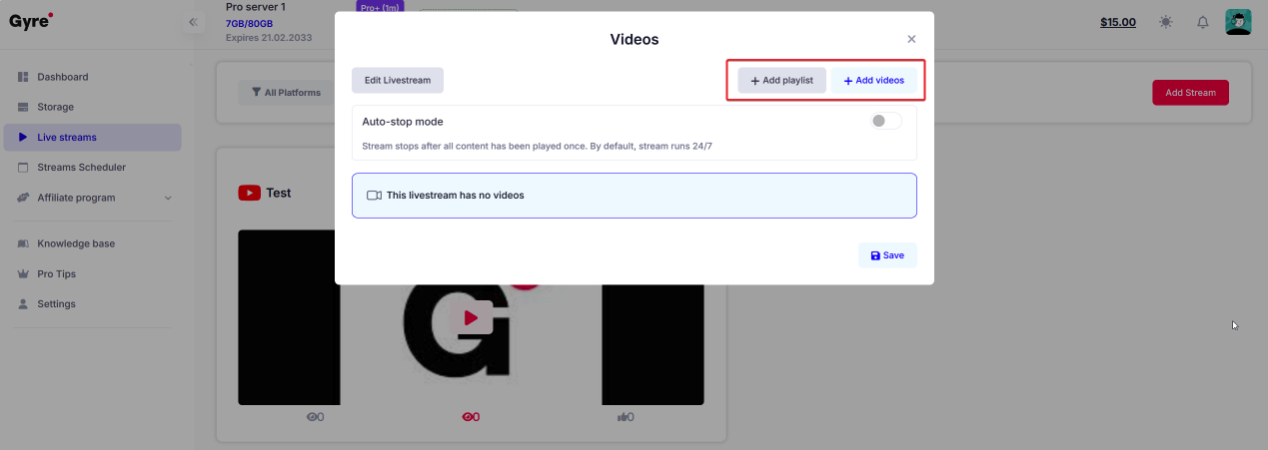
- Click Add videos or Add playlist.
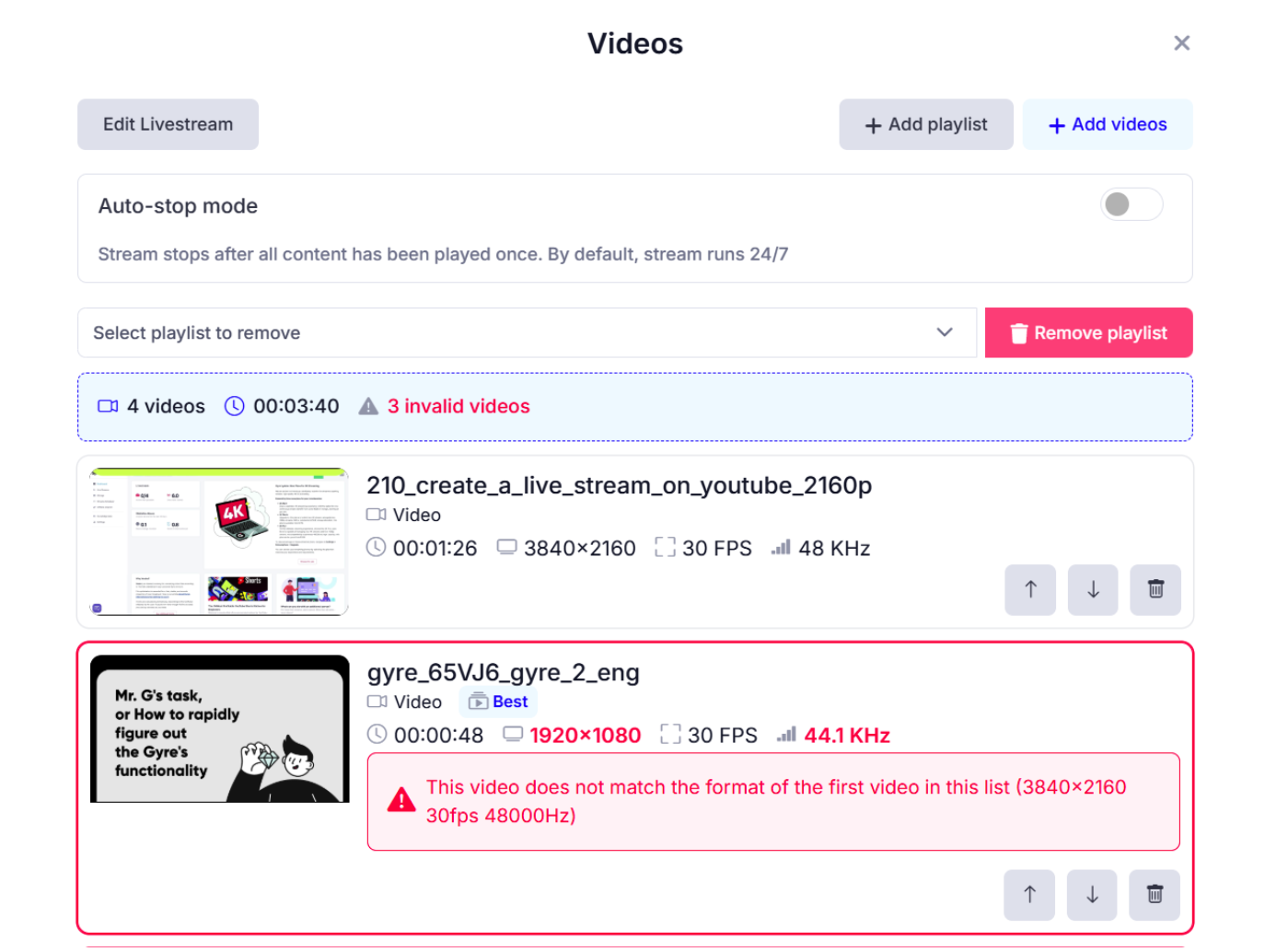
- Reorder files by dragging or using arrows. You can delete individual videos or the entire playlist.
- If a file is highlighted in red, it doesn’t match the parameters of the first video. Adjust the order, modify the file parameters, or remove unsupported files.
-
Click Save.
4. Starting the Stream
- In the stream list, click Start.
Additional Stream Actions
- Edit Livestream — update the title, description, tags, or thumbnail.
- Edit Videos — update the list of files.
- Duplicate — create a copy of the stream.
- Schedule — add the stream to the calendar.
- YouTube Studio Edit — access advanced settings.
- Delete Livestream — remove the stream.
- Pin (star icon) — move the stream to the top of the list.
